
5 Free Shopify Flow Automations That Replace Paid Apps

Last tested 17 Nov 2026 on a real store · 8 min read
On this page
Open your Shopify bill and count the small apps: one that tags VIP customers, one that warns you about low stock, one that flags risky orders. Each costs $9 to $29 a month. Together they often add up to more than $100 a month for jobs that are just "when this happens, do that".
Shopify already ships a tool for exactly that. Shopify Flow is a free automation app from Shopify, available on the Basic, Shopify, Advanced and Plus plans. It runs inside your admin, so there is no extra script loading on your storefront.
This guide walks through five automations you can build today, with the trigger, condition and action for each one.
How far we have tested: workflow 1 was built end to end in our test store, with screenshots. For workflows 2 to 5 we have confirmed that every trigger and action named here exists in Flow, but we have not yet built them end to end, so the wording of a condition may differ slightly on your screen.
What each automation replaces
| Paid app type | Typical price | What Flow does instead |
|---|---|---|
| Customer tagging / VIP segmentation | $29/mo | Tags customers automatically when an order passes a spend threshold |
| Low-stock and sold-out alerts | $15/mo | Unpublishes sold-out products and emails you or your supplier |
| Fraud order filter | $29/mo | Holds fulfillment on high-risk orders and alerts your team |
| Big-order notification | $19/mo | Emails your team when a large first order arrives |
| Cancellation clean-up | $9/mo | Tags, notifies and archives cancelled orders |
Prices are typical list prices for single-purpose apps in the Shopify App Store. Check what you actually pay — the calculator above lets you tick only the ones you have.
Before you start
- In your Shopify admin, go to Apps and search for Shopify Flow. Install it (free).
- Open Flow, click Create workflow, then Select a trigger.
- Every workflow has three parts: a trigger (what starts it), optional conditions (when it should continue), and actions (what it does). To add the next step, click the small handle under a step and choose Condition or Action.
01Tag VIP customers automatically
Why: Your best customers should land in a segment the moment they buy, so your email flows and support team can treat them differently.
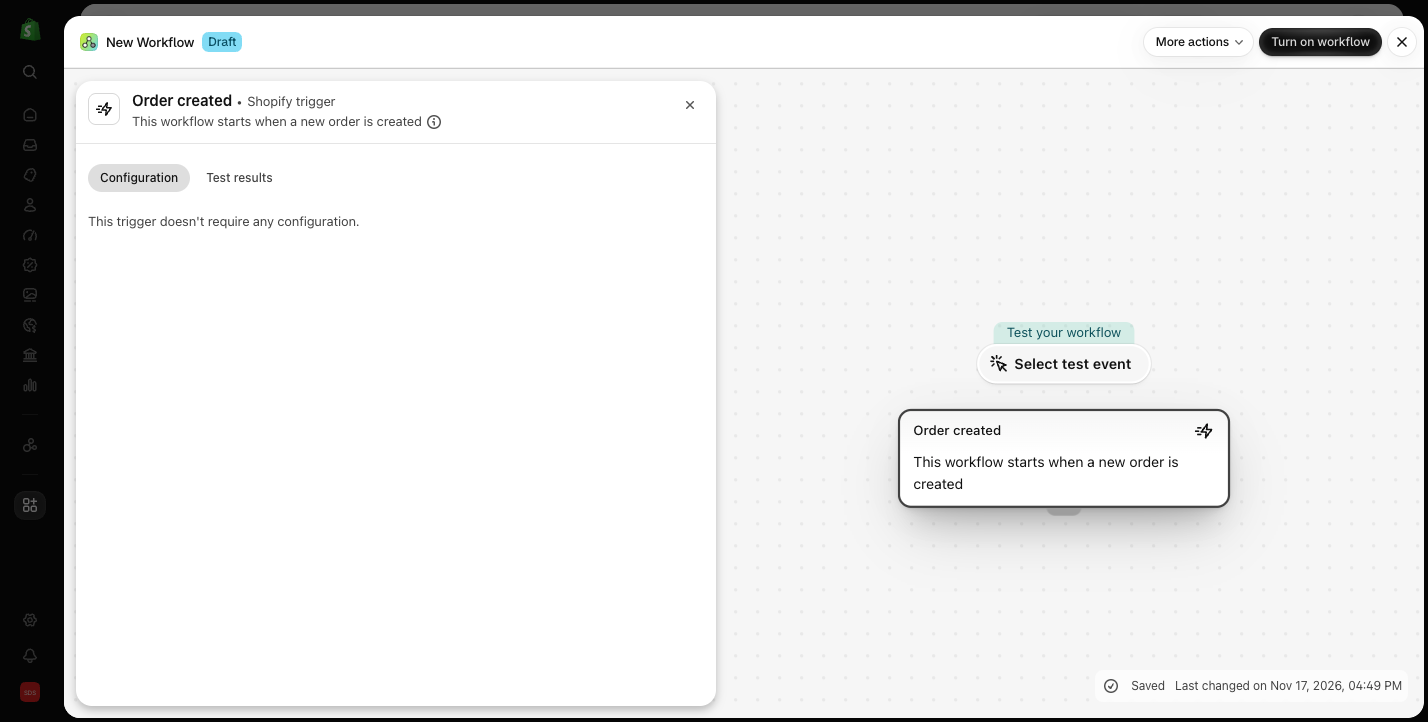
- Trigger: Order created
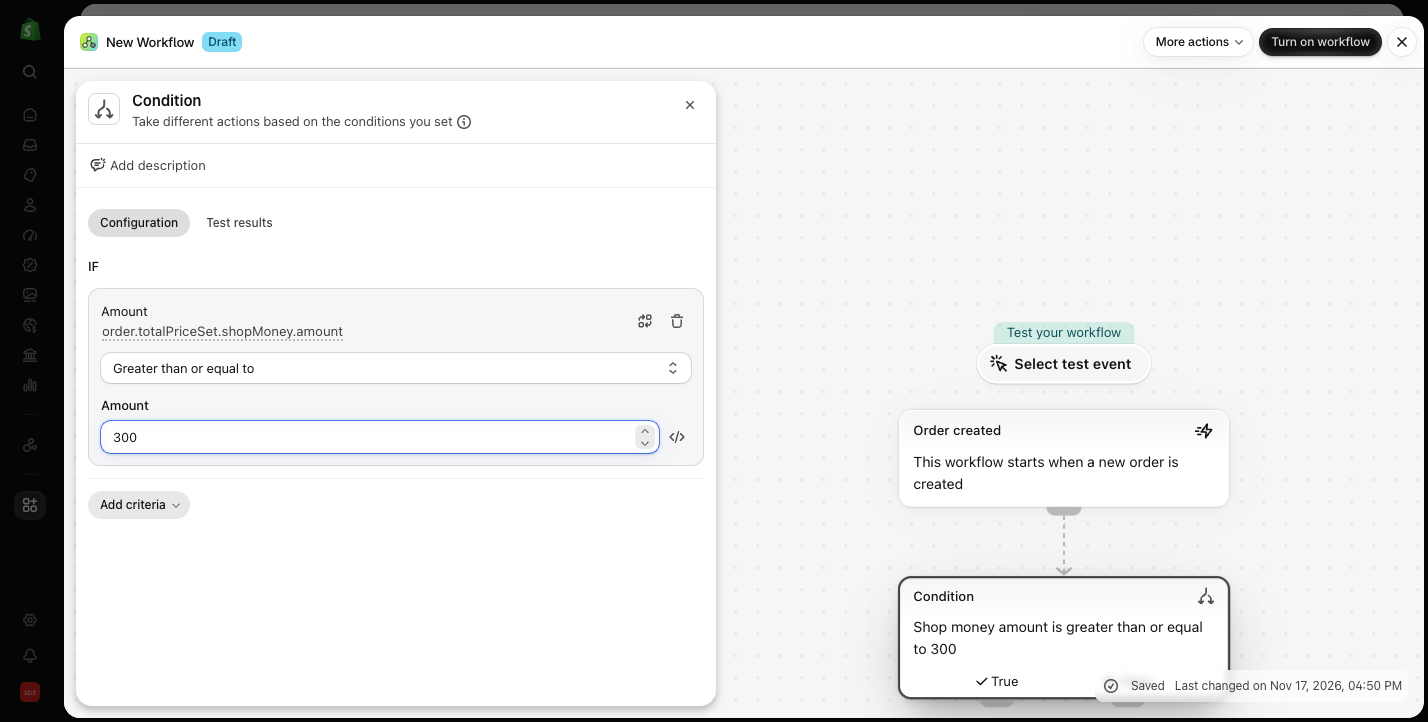
- Condition: click Add a variable, search "total price" and pick
order / totalPriceSet / shopMoney / amount. Set it to Greater than or equal to300 - Actions (on the True branch):
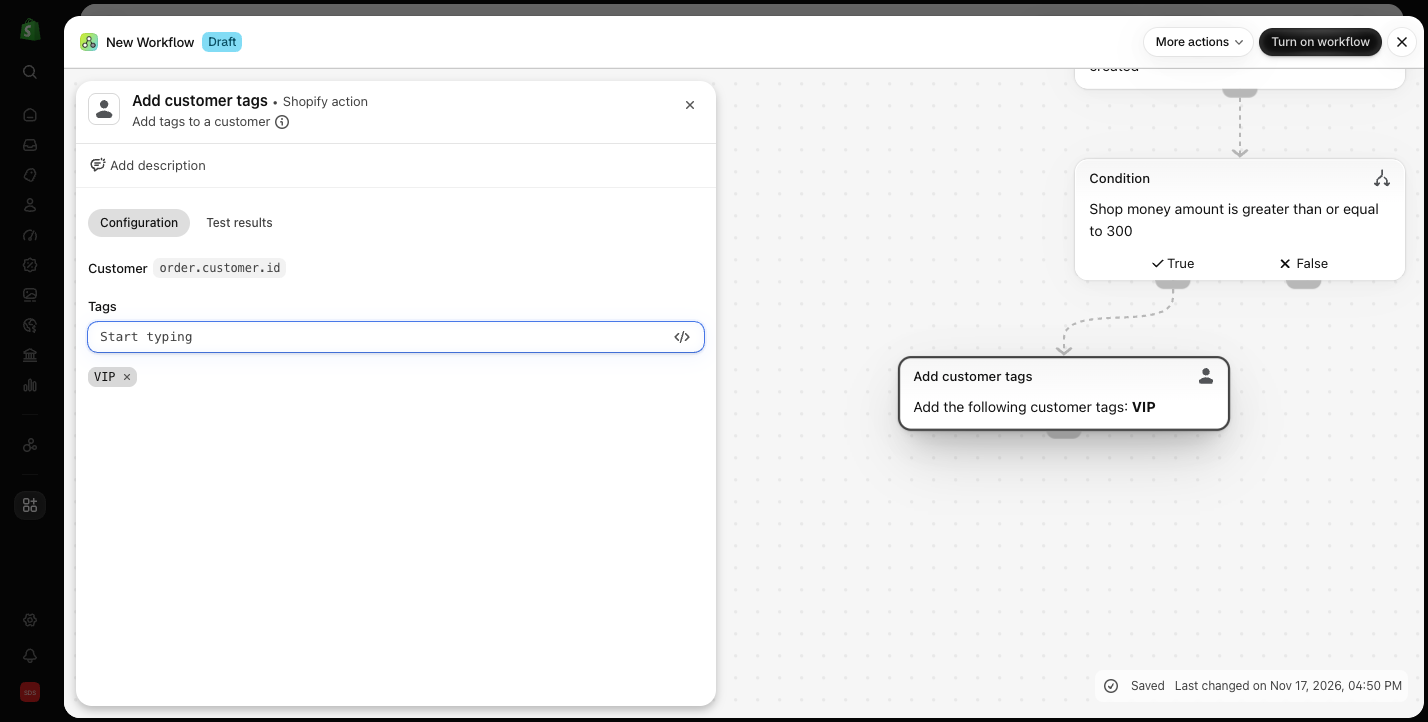
- Add customer tags → type
VIPand press Enter - Send internal email → to yourself, with the order number and customer name
- Add customer tags → type
Change 300 to whatever a "big order" means for your store. A good starting point is three times your average order value.
5 Shopify Flow recipe cards
All five workflows on printable cards: trigger, condition and actions for each. Keep it open while you build.
Download the recipe cards (PDF)02Unpublish sold-out products and alert your supplier
Why: A sold-out product that is still live keeps eating ad spend and creates orders you cannot ship.
- Trigger: Product variant inventory quantity changed
- Condition: Inventory quantity is less than or equal to 0
- Actions:
- Unpublish product (makes it unavailable on the sales channels you select)
- Send internal email → to your purchasing inbox, including the product title and SKU
If you sell products with long restock times and take pre-orders, skip the "Unpublish product" action and keep only the email.
03Hold high-risk orders before they ship
Why: A fraudulent order costs you the product, the shipping, and a chargeback fee on top. Stopping the shipment is the cheapest fix.
- Trigger: Order risk analyzed
- Condition: Order risk level is equal to High
- Actions:
- Hold fulfillment order
- Add order tags →
fraud-review - Send internal email → to whoever reviews orders
Shopify's risk analysis does the scoring. Flow only makes sure nobody ships the order before a person has looked at it.
04Alert your team about large first orders
Why: A new customer who spends a lot on their first order is the easiest person to turn into a repeat buyer. A personal thank-you email within a few hours goes a long way.
- Trigger: Order created
- Conditions: Order total price is greater than or equal to 500 and customer's number of orders is equal to 1
- Action:
- Send internal email → to your support lead, with the customer's name, email and the items ordered
05Clean up after cancelled orders
Why: Cancelled orders leave behind campaign tags and clutter your order list, which makes reports and segments less reliable.
- Trigger: Order cancelled
- Actions:
- Remove customer tags → any campaign tag you added for that order
- Add order tags →
cancelled-reviewed - Archive order
Restocking is handled by Shopify itself when you cancel an order with the "Restock items" box ticked, so you do not need Flow for that part.
When a paid app is still worth it
Flow is great at "if this, then that". It is not a replacement for tools that do deep, specialised work:
- Email and SMS marketing. Flow can trigger things, but it cannot design campaigns, predict churn or run abandoned-cart sequences with product recommendations. A dedicated tool such as Klaviyo or Omnisend pays for itself here.
- Product reviews. Collecting photo reviews, moderating them and showing star ratings in Google needs a review app such as Judge.me or Loox.
The rule we use: pay for apps that make you money, automate the ones that only move data around.
FAQ
Is Shopify Flow really free? Yes. Flow is a free app made by Shopify. It is available on the Basic, Shopify, Advanced and Plus plans.
Do I need to know how to code? No. You pick triggers, conditions and actions from menus. The five workflows above need no code.
Will Flow slow down my store? No. Flow runs on Shopify's servers in the background. It does not add scripts to your storefront.
5 Shopify Flow recipe cards
All five workflows on printable cards: trigger, condition and actions for each. Keep it open while you build.
Download the recipe cards (PDF)